ArtMesh (Layer) Groups
In VTube Studio (VTS), you can organize meshes into groups. Each group holds any number of ArtMeshes so you can manage or edit them together.
Terminology: layer vs ArtMesh
VTube Studio does not use one fixed word everywhere. The terms ArtMesh and layer are used interchangeably in the VTS UI and the official VTS wiki.
We mostly write ArtMesh when explaining Live2D concepts (Cubism’s term). When we quote a button or menu (for example Set up layer groups), we copy VTS’s exact label so you can find it on screen.
Creating a Layer Group
Open the Layer Group Editor
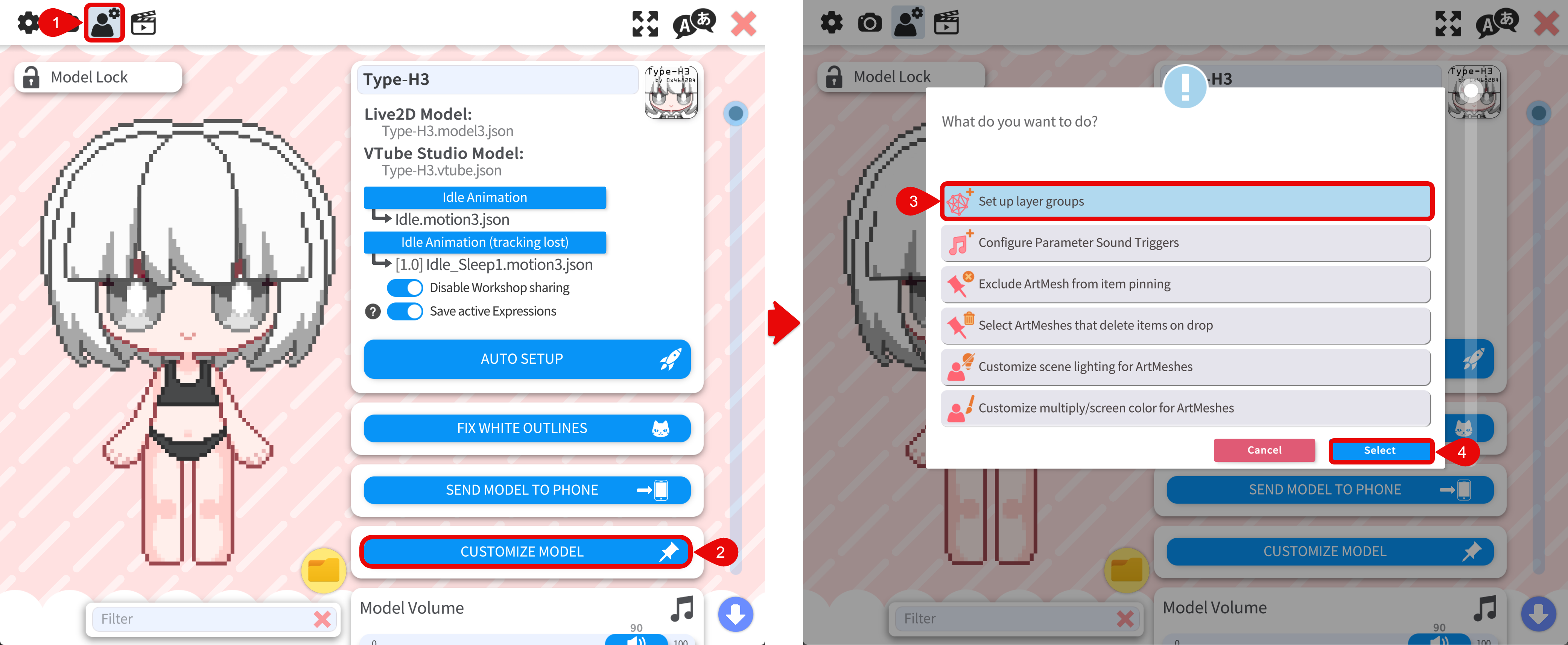
- Open the Model Settings tab.
- Click CUSTOMIZE MODEL.
- Choose Set up layer groups.
- Click Select to open the layer group editor.
Create a New Group
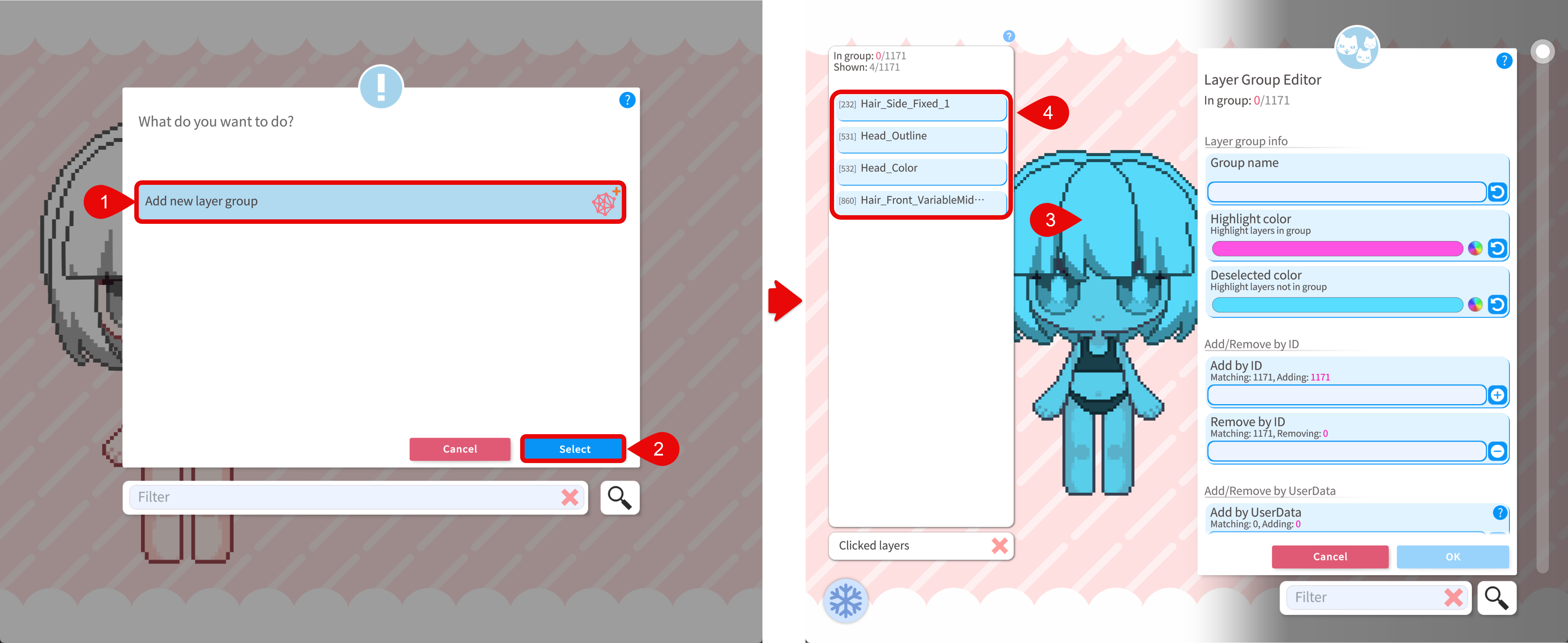
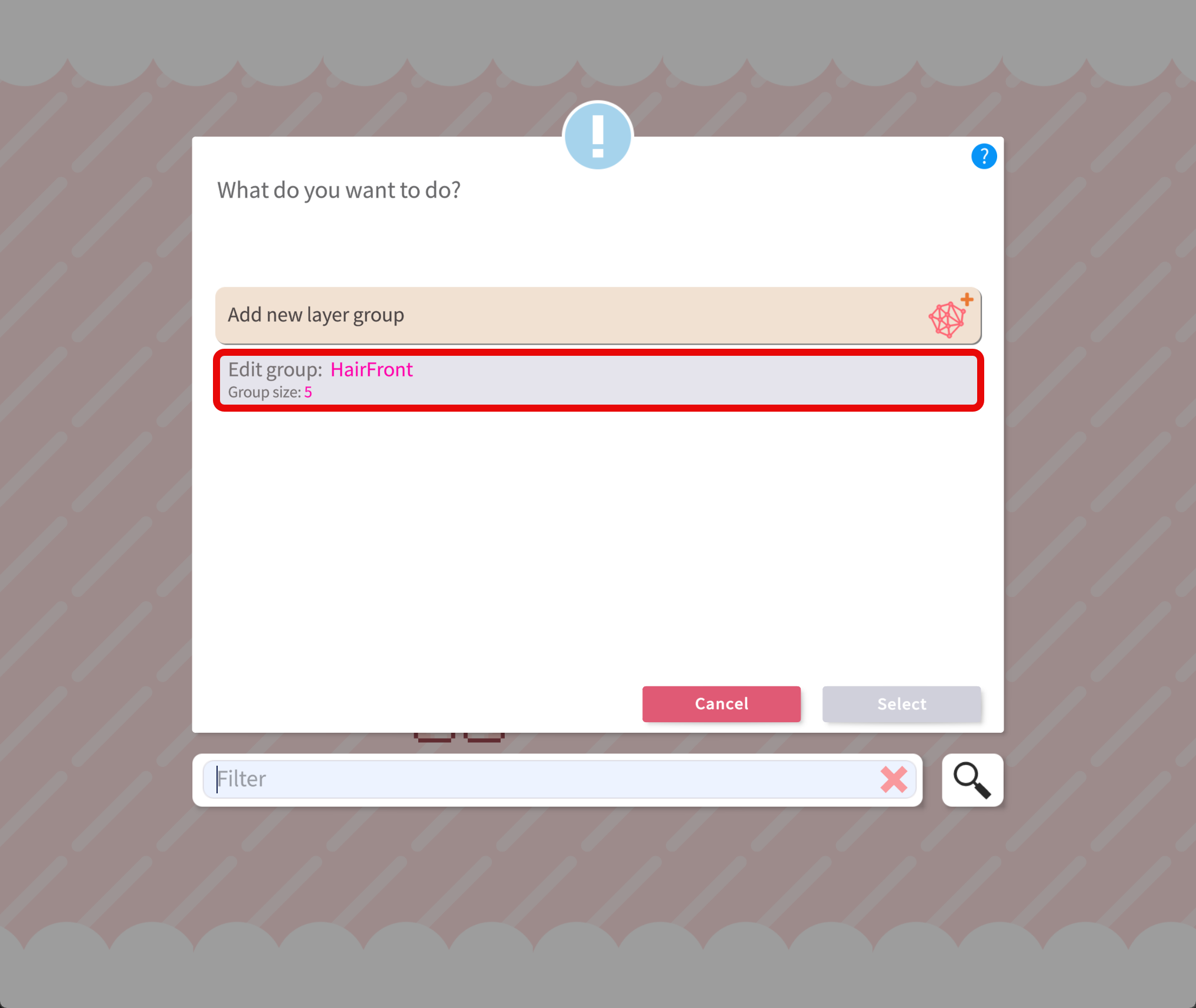
- Choose the option to add a new layer group. You can also select an existing group to edit it.
- Click Select to start creating a new group (wording may vary slightly by VTS version).
- In the group editor, click on the model. ArtMeshes at that spot are listed in the left panel.
- Use that list to work with the meshes you want in the group.
Add ArtMeshes or Layers to the Group
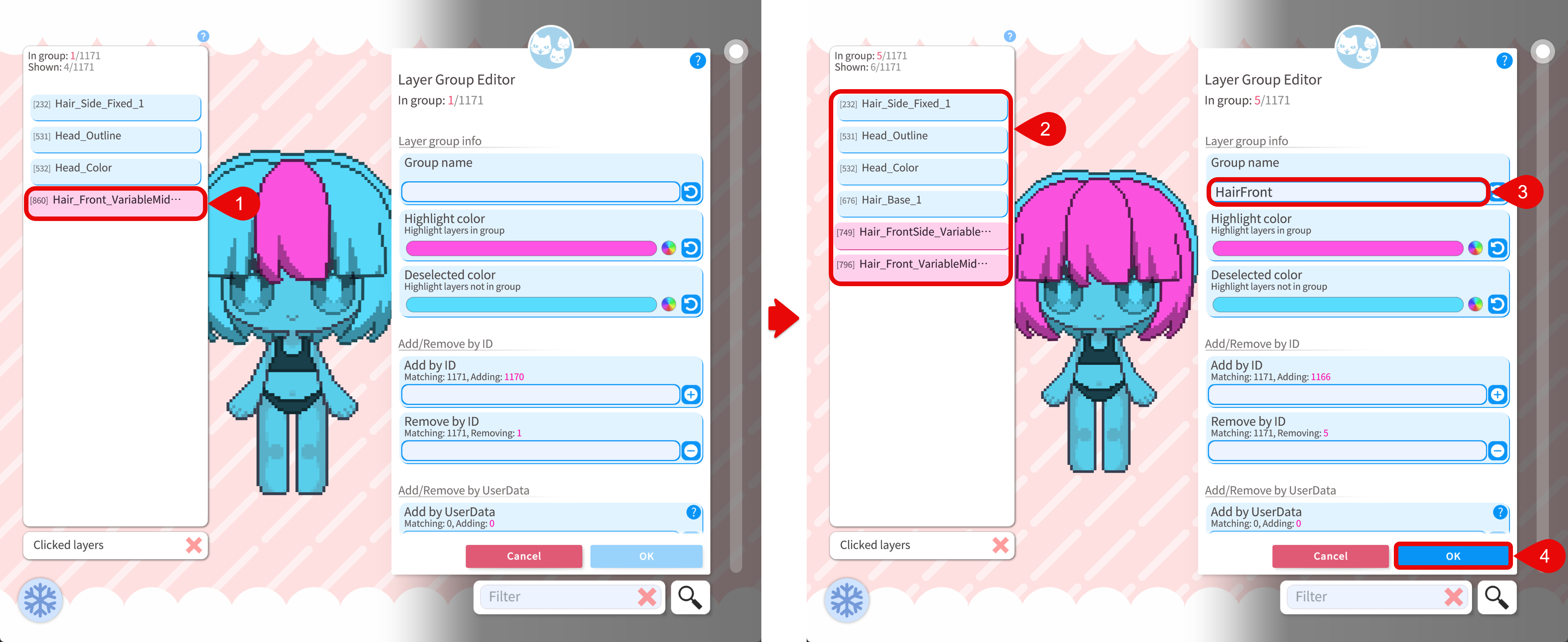
- In the left panel, select the ArtMeshes (layers) you want in the current group.
- You can add multiple ArtMeshes or layers in one go.
- Name the group before you save.
- Click OK to save the group.
The group then appears in the group list and can be reused for bulk color editing.
Using Groups for Bulk Color Editing
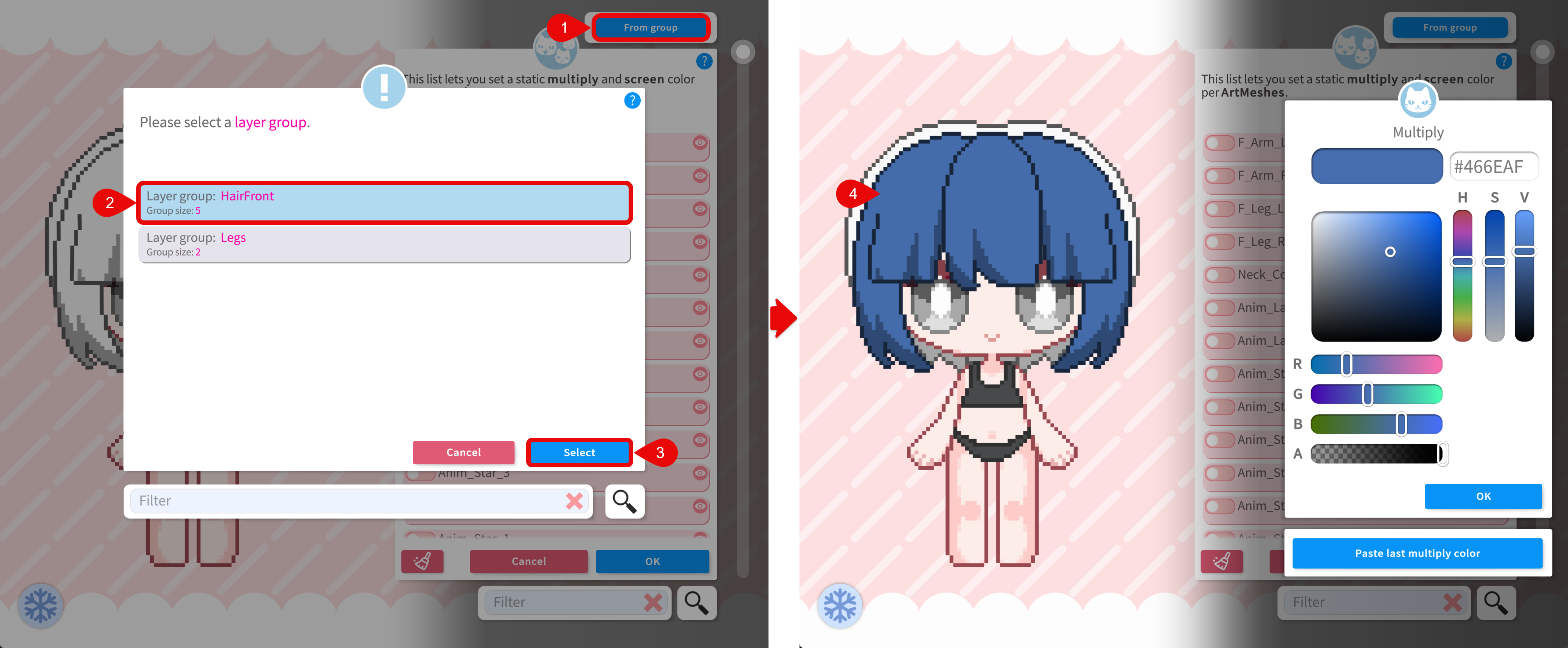
In the ArtMesh multiply/screen color editor, you can choose a group and edit color for all ArtMeshes or layers in that group at once.
- In the editor, use the control that targets groups (for example From Groups in the upper area—exact placement depends on your VTS version).
- In the menu that appears, pick the group you want to recolor.
- Adjust multiply and screen color; the change applies to the whole group.
See Also
- Mesh color editing — Per-mesh multiply/screen tinting; groups do this in bulk.
- Live2D primer — What an ArtMesh is in the Live2D pipeline.
- ArtMesh Groups (VTube Studio wiki) — Full manual from DenchiSoft.