Lip-Sync (Microphone)
VTube Studio can use your microphone to analyze speech and drive Live2D mouth shapes. For most setups, face tracking already handles the mouth movements very well, so lipsync is not required at all (or even discouraged). However, it can still be useful in setups such as:
- No face tracking (mouse / keyboard style): Bind head turn and eye direction to mouse position so the character's look direction follows the cursor, and use lip-sync so the mouth follows voice input.
- TTS mascots or pet models: Face tracking drives the main avatar, while lip-sync drives the mouth on the mascot or pet. The audio source is often TTS output (for example, reading chat messages aloud).
Lip-Sync Type
You should always use the Advanced lipsync type.
- Go to the General Settings & External Connections tab.
- Find the Microphone Settings section.
- Set Lipsync type to Advanced lipsync.
- Click the Select button to save the changes.
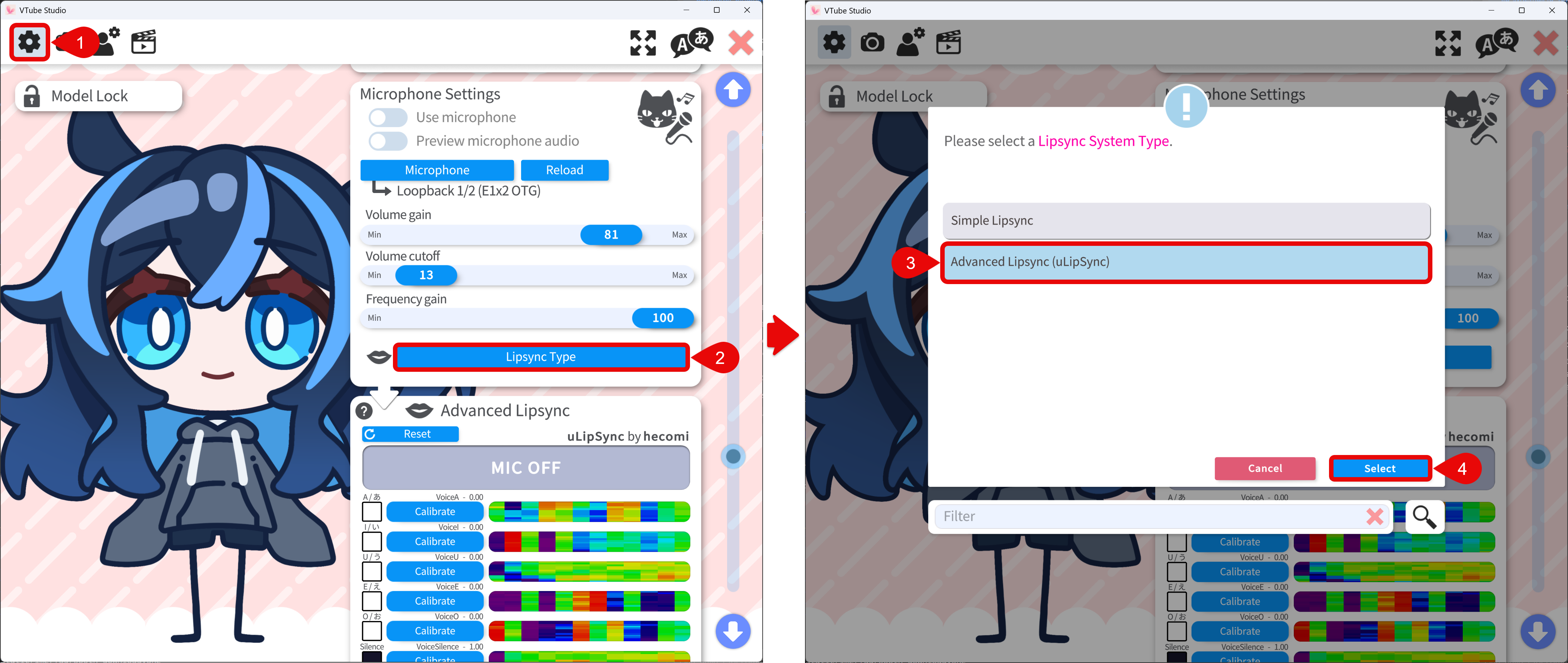
Use and Configure Lipsync
To use the lipsync, follow the steps below:
- Turn on the Use microphone toggle
- Select the microphone you want to use. Reload if the audio lags.
- Adjust the microphone settings as needed:
- Volume gain — Boosts input level. Affects
VoiceVolume,VoiceVolumePlusMouthOpen, and all vowel parameters (VoiceA, VoiceI, VoiceU, VoiceE, VoiceO). - Volume cutoff — The volume threshold below which the input is considered silence. This is used to cut off the noise from the microphone. Usually this value should be kept low or 0.
- Frequency gain — Boosts
VoiceFrequency,VoiceFrequencyPlusMouthSmile, and the vowel parameters above.
- Volume gain — Boosts input level. Affects
- Advanced Lipsync Calibration:
- For each vowel (A, I, U, E, O), press the Calibrate button and pronounce the vowel until the calibration finishes.
- Press Reset button to restore default calibration.
- After calibrating, say A, I, U, E, O again and confirm the indicators light up for each vowel.
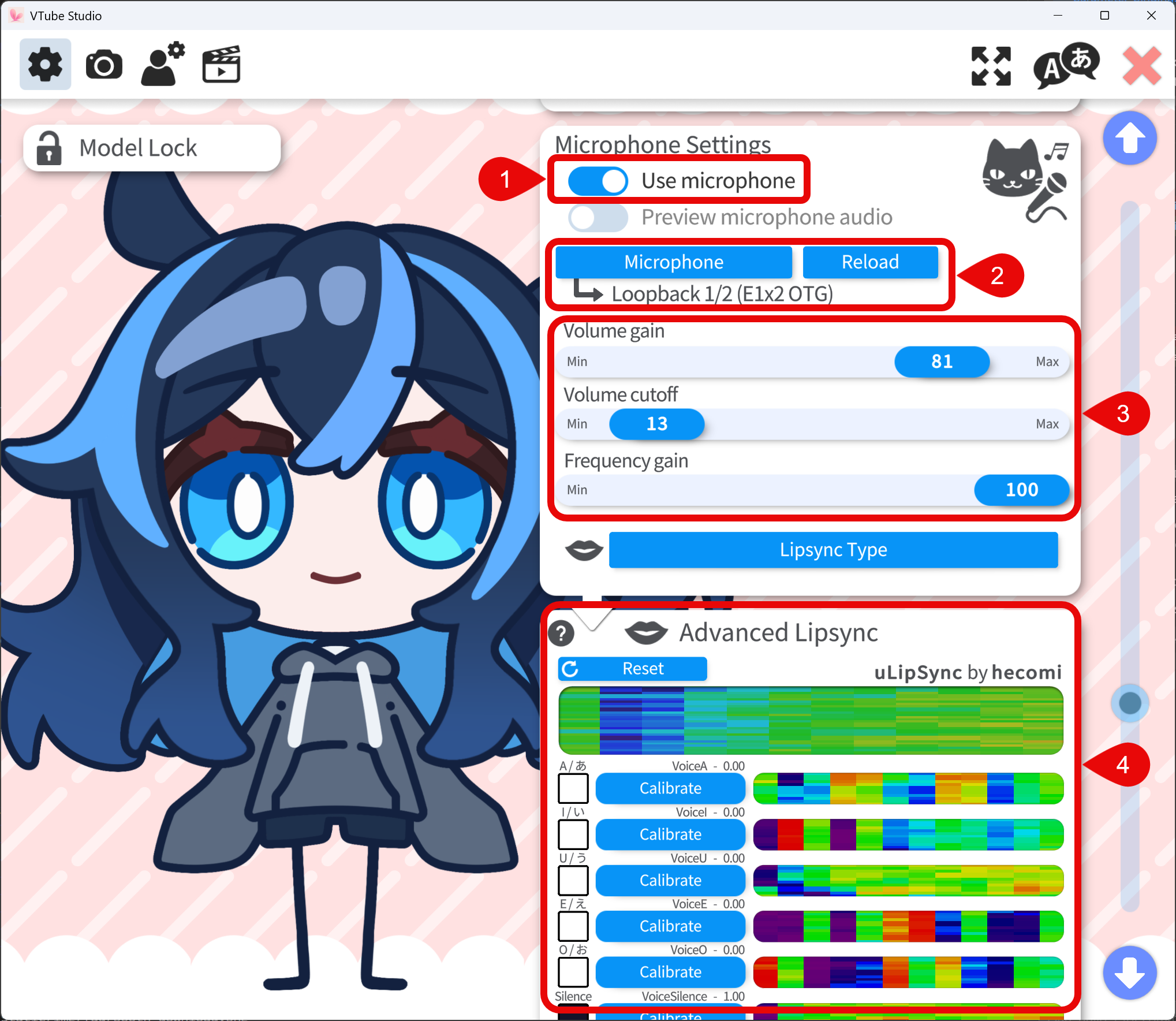
Voice Tracking Parameters
The following tracking parameters are driven by voice input. You can bind them to the Live2D model parameters to control the mouth movements. Note that not all Live2D models have matching vowel parameters since using lip-sync to drive the mouth movement is relatively rare.
| Parameter | Range | Meaning |
|---|---|---|
VoiceA | 0–1 | Strength of detected A, usually bind to the vowel parameter in Live2D model |
VoiceE | 0–1 | Strength of detected E, usually bind to the vowel parameter in Live2D model |
VoiceI | 0–1 | Strength of detected I, usually bind to the vowel parameter in Live2D model |
VoiceO | 0–1 | Strength of detected O, usually bind to the vowel parameter in Live2D model |
VoiceU | 0–1 | Strength of detected U, usually bind to the vowel parameter in Live2D model |
VoiceSilence | 0–1 | 1 when there is no voice input or the input is below the volume cutoff, usually bind to the VoiceSilence parameter in Live2D model |
VoiceVolume / VoiceVolumePlusMouthOpen | 0–1 | Loudness from input audio, usually bind to ParamMouthOpenY |
VoiceFrequency / VoiceFrequencyPlusMouthSmile | 0–1 | audio frequency from input audio, usually bind to ParamMouthSmile, should not be used together with vowel parameters |