Controller Tracking
This page covers the built-in controller tracking features in VTube Studio (VTS).
Controller input in VTS can be used for:
- Driving Live2D tracking parameters (for movement/animation control)
- Triggering hotkeys (for expressions, toggles, and other actions)
Please visit the VTube Studio Controller Input page for supported controllers.
Enable and Select Controller Input
- Connect your controller to the PC. The exact process depends on your controller model and driver requirements.
- In VTS, open the Settings menu (gear icon).
- Click the General Settings & External Connections tab and find the Controller input section.
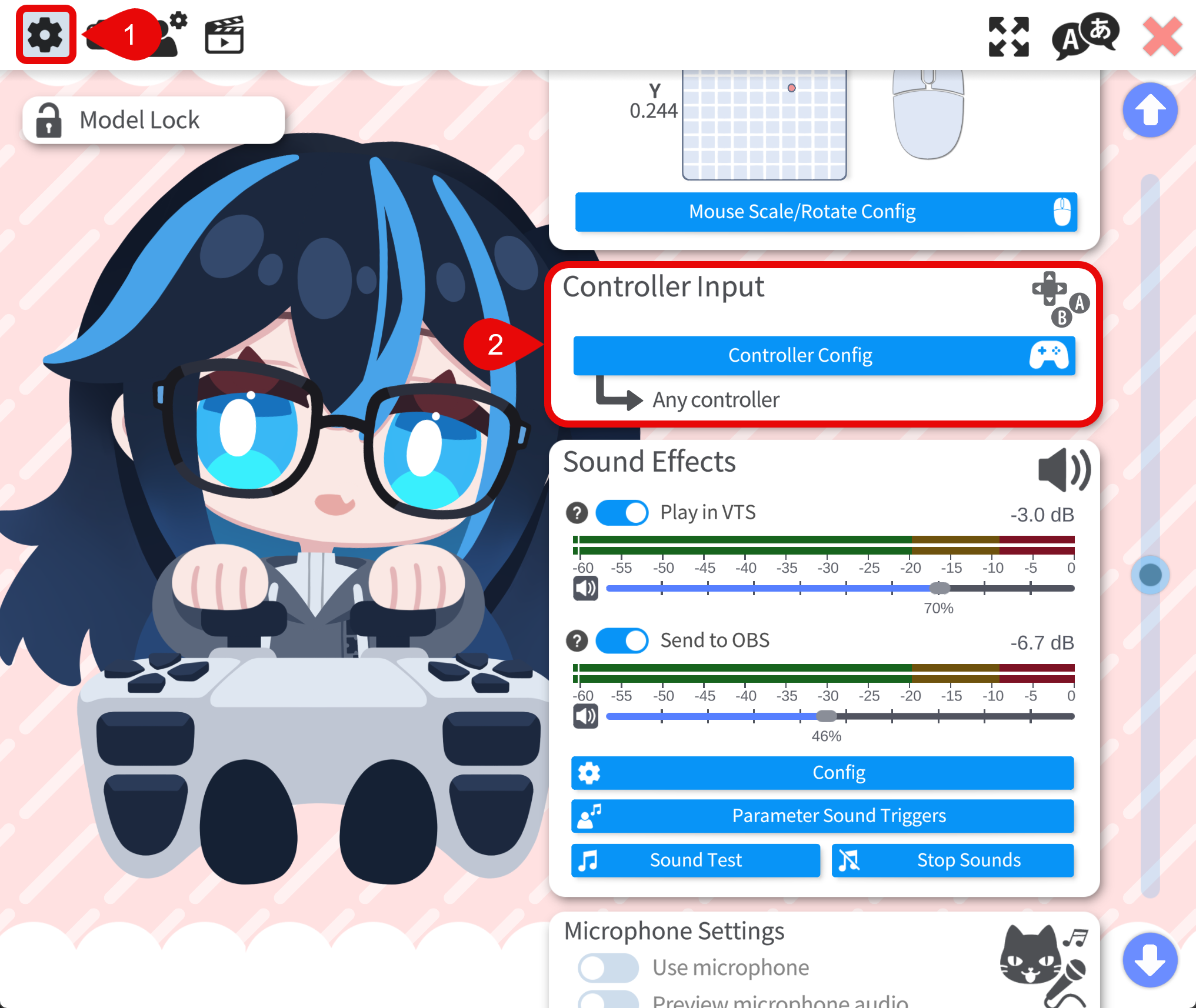
- Click Controller Config to open the Controller Widget in VTS.
- In the controller dropdown, choose one of:
- No Controller: Disable controller input.
- All Controllers: Combine input from all connected controllers.
- A specific controller: Only input from this specific controller is used.
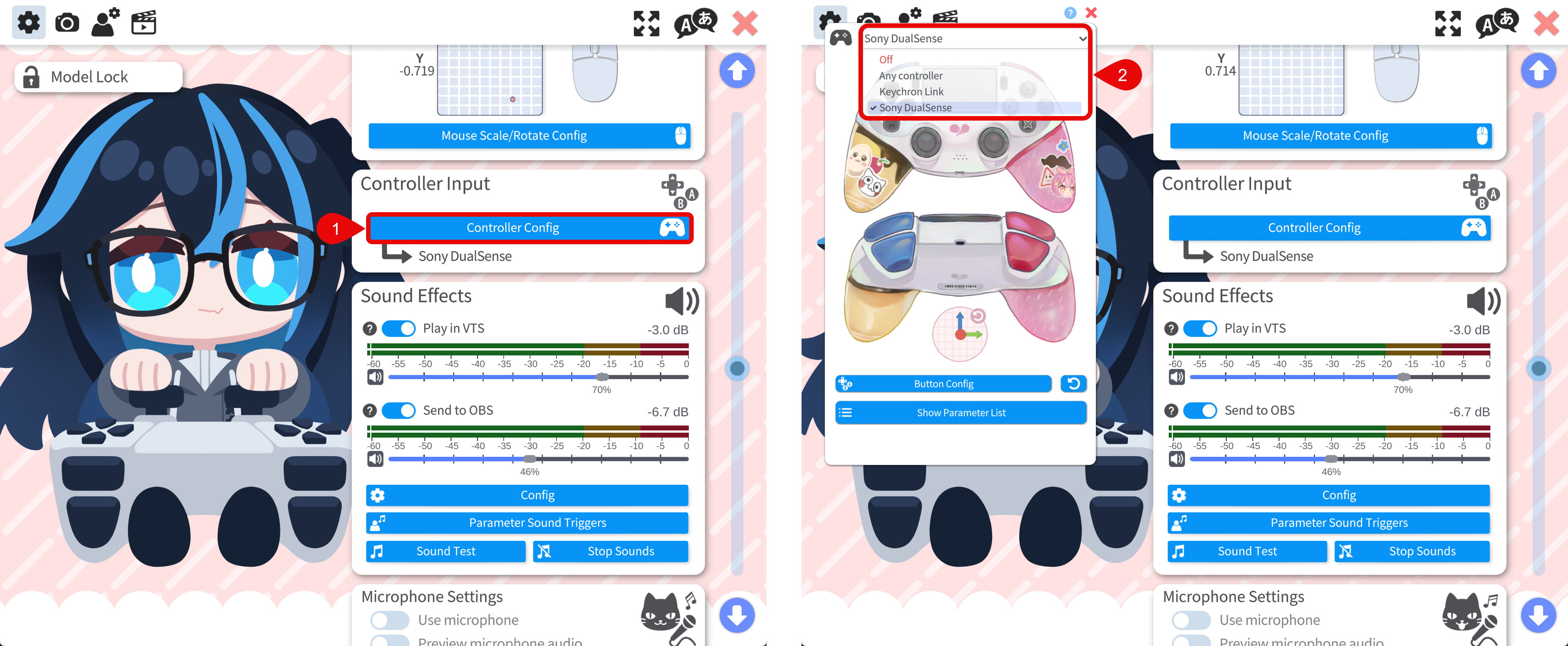
- Press buttons or move sticks and confirm live input updates in the widget.
Controller Parameters
If controller input is not working as expected, check the live parameter output in the Controller Widget.
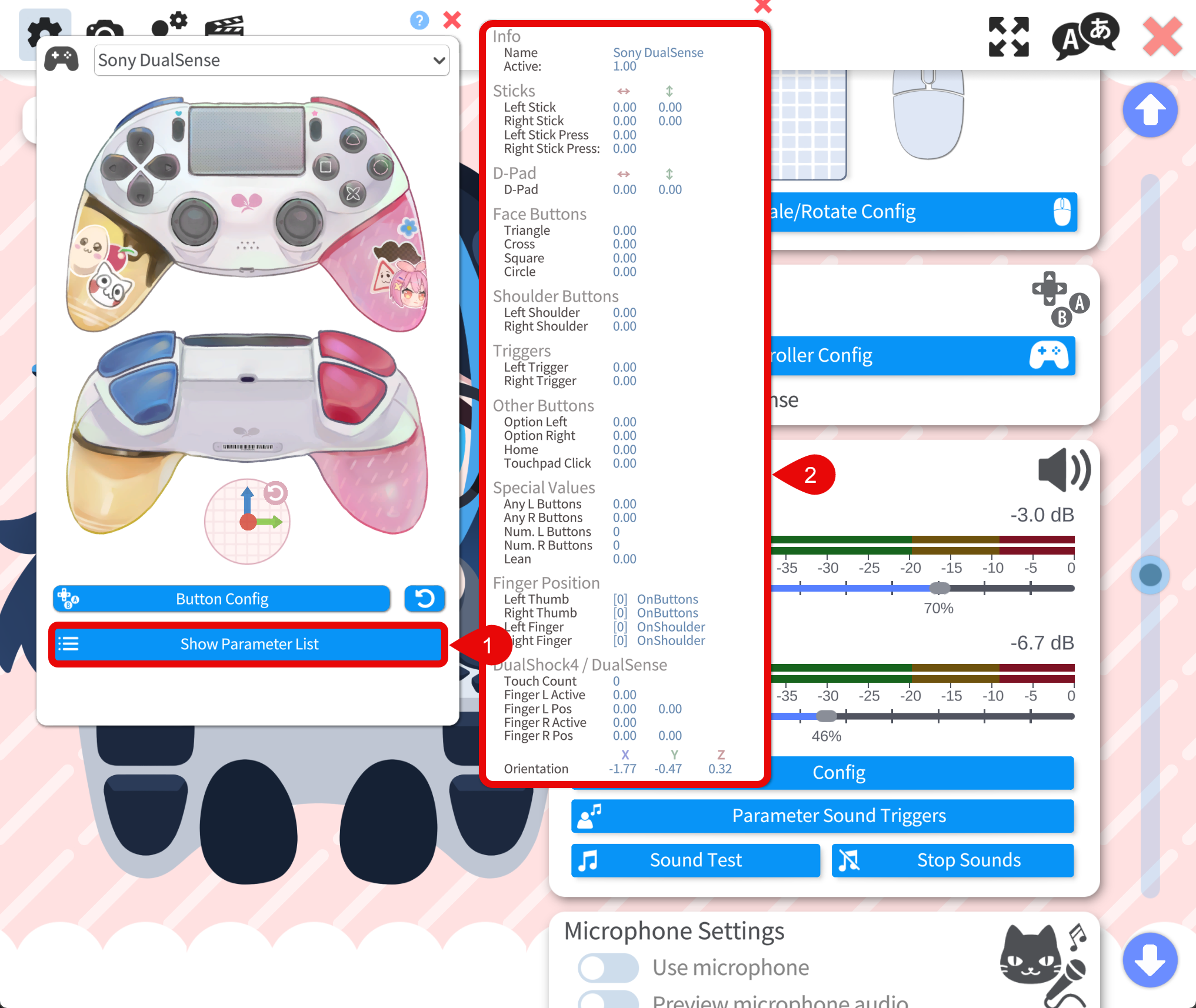
Controller Button Configuration
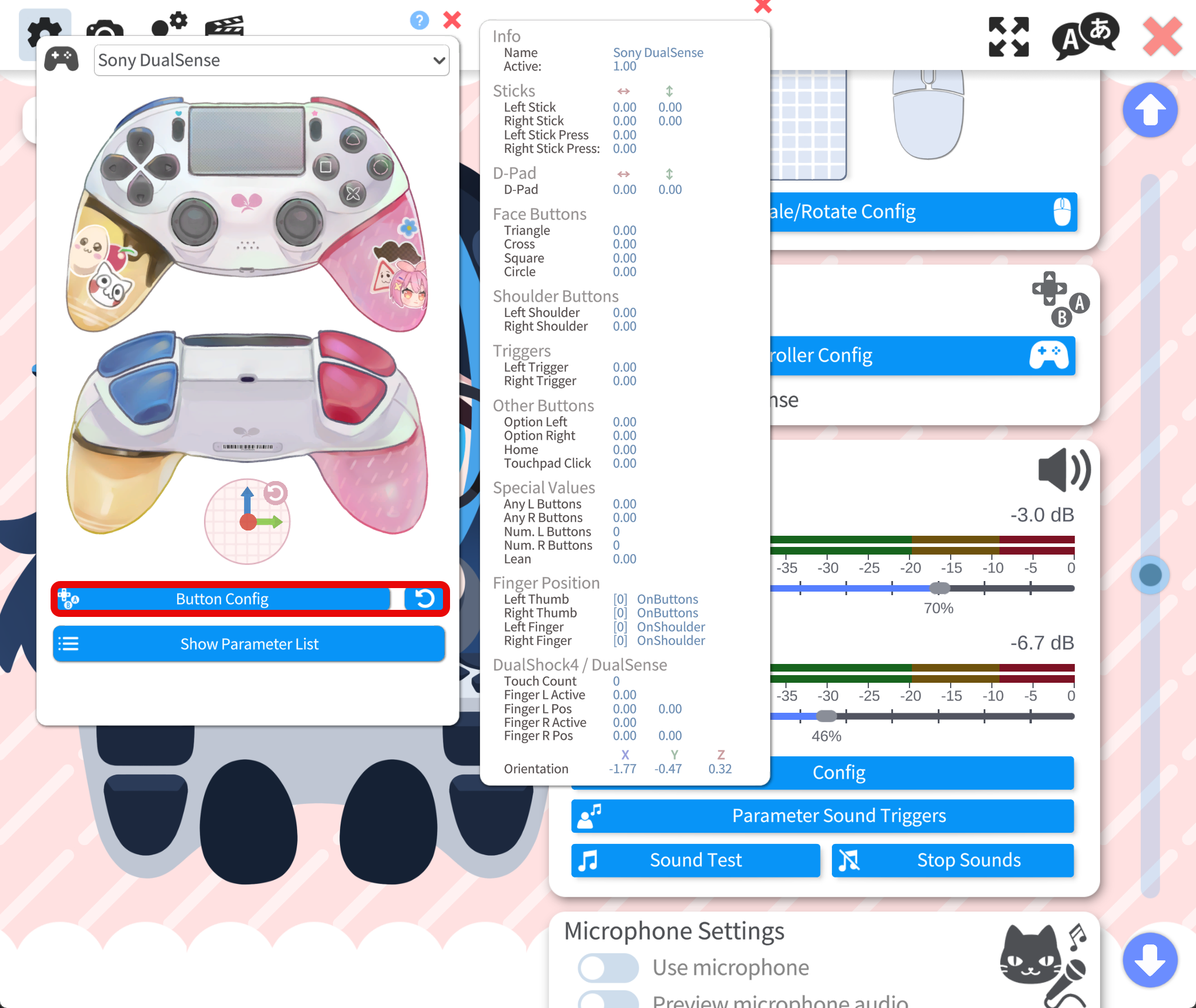
If button/axis mapping is incorrect, configure it in the Controller Widget.
- Select a specific controller in the dropdown.
- Click Button Config.
- Follow the step-by-step prompt and press the requested input.
- Skip inputs if needed.
- Finish setup to save mapping.
If needed, use Reset Setup to clear custom mapping.
Troubleshooting
- If no input is detected, first check whether your operating system detects the controller.
- If the controller appears in Steam but not in VTS, try disabling Steam Input for VTube Studio in Steam (
Library -> VTube Studio -> Properties -> Controller -> Disable Steam Input). - If mapping feels incorrect after switching controllers, run Button Config once, or use Reset Setup.