Model Customization
On customizable Live2D models, the customization states (outfits, colors, accessories, etc.) are usually saved as expressions in VTube Studio (VTS). An expression stores the current values of the model’s customization parameters (and any other non-physics parameters you include). The expression can be created and edited using VTS's Expression Editor.
Which parameters exist depends on the product. For a full list for your model, use the customization parameters pages for that product under Models.
Customization Expression
Create a New Expression
- In VTS, open Settings menu and go to the Hotkey Settings & Expressions tab.
- Press the Expression Editor button.
- Select the Create New Expression option.
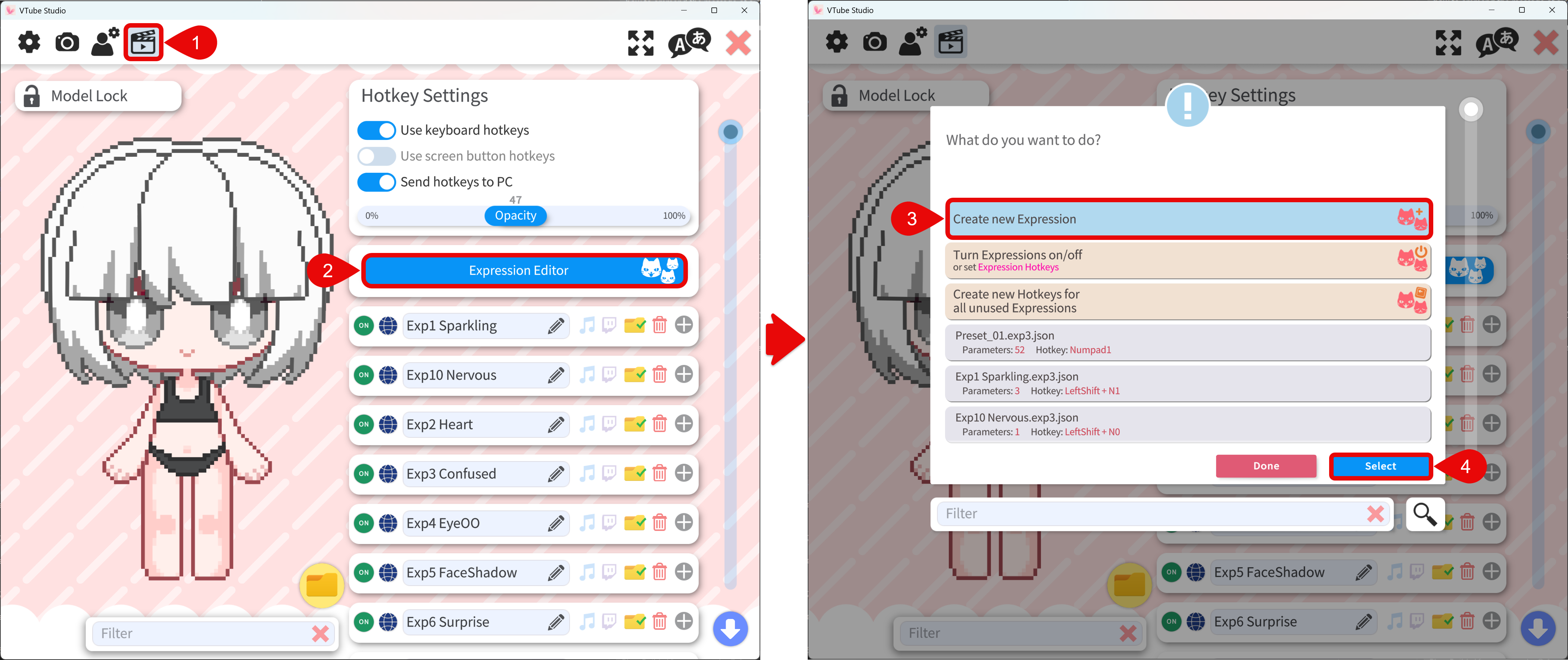
Edit the Expression
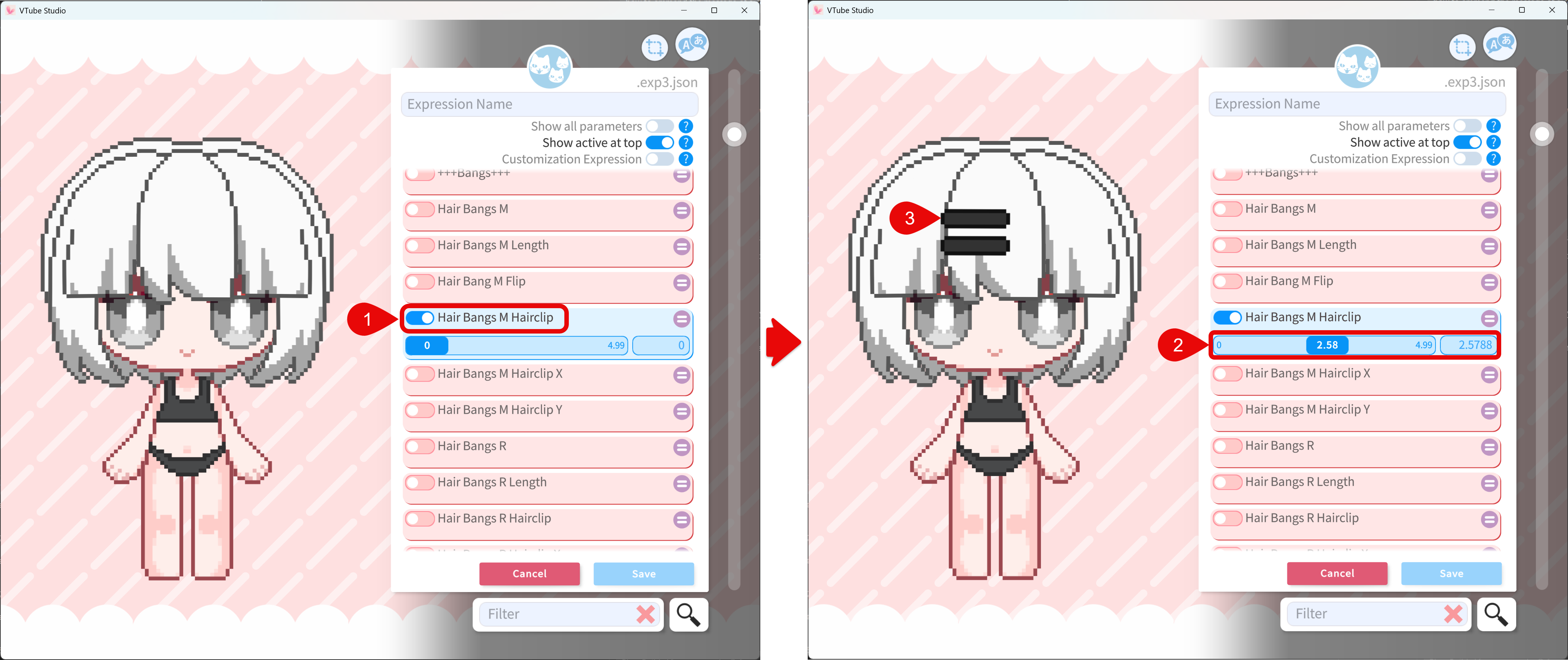
Once a new expression is created, you will be able to adjust the Live2D model's parameters. To adjust the parameter values:
- Toggle on the parameter you want to adjust.
- Adjust the parameter slider or enter the value directly.
- You will be able to see the model's appearance change.
Save the Expression
The saved expression can be edited later anytime. To avoid losing your work, it is recommended to save the expression regularly during the editing process.
- To save the expression, you will need to first give the expression a name.
- Then, press the Save button.
- The expression will appear in the expression list.
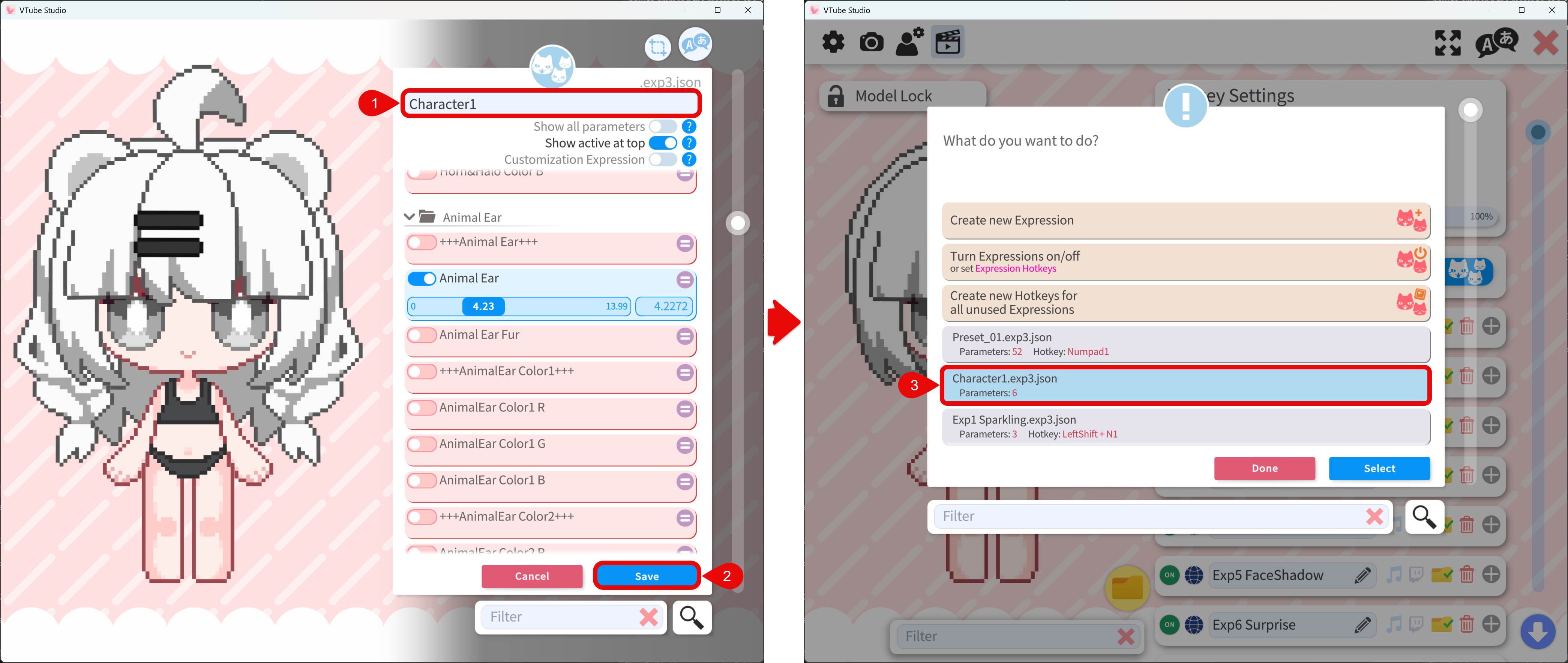
When you save in the Expression Editor, VTS stores the preset as an .exp3.json file next to your model assets. It is usually under an Expressions subfolder inside the model directory. If the Expressions folder does not exist, the expression will be put in the model folder root. It is recommended to make an external backup of the expression files to avoid losing your work.
Edit Existing Expression
- In the expression editor pop up, choose the expression you want to edit.
- Click the Select button to enter the edit mode.
- You are now able to adjust the parameter values.
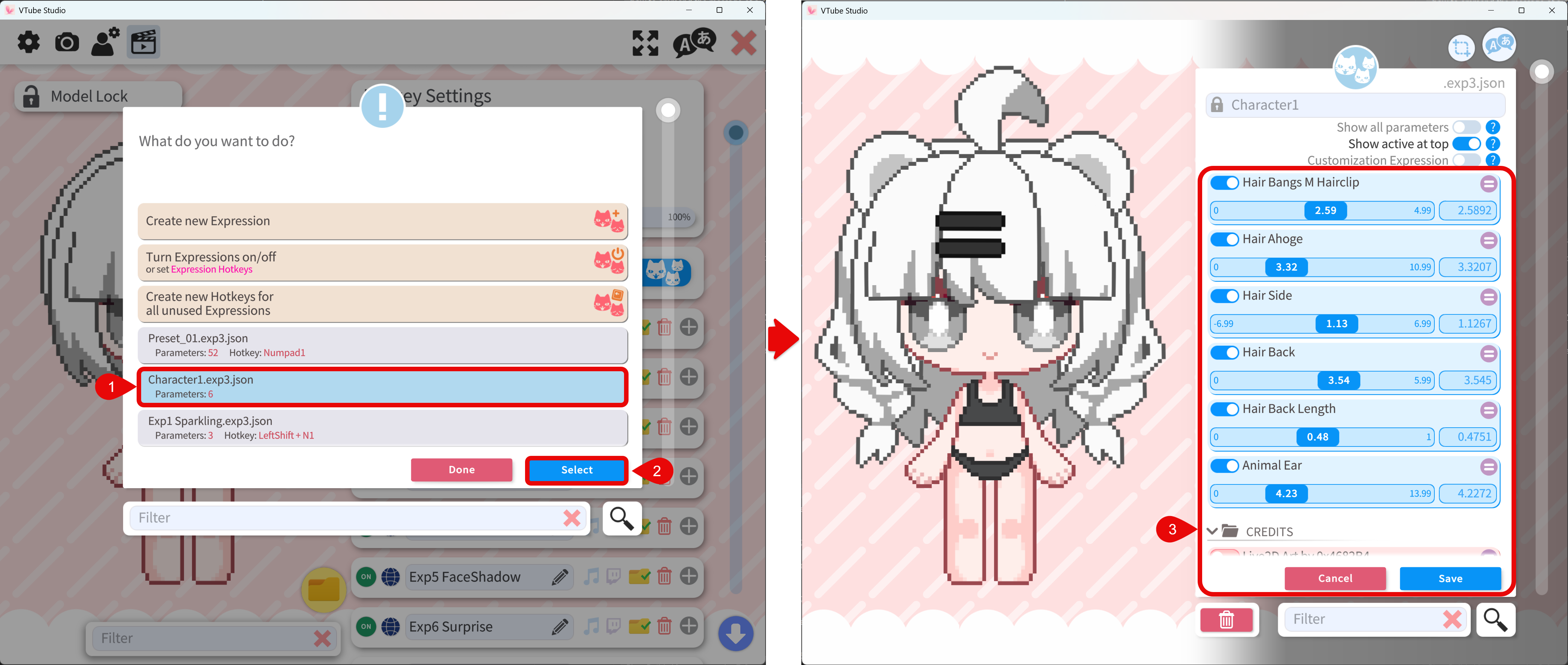
Color Parameters
Models may expose color editing parameters in several ways. It is also possible that no color editing parameters are exposed. In this case, you can adjust the color by mesh color editing or texture editing.
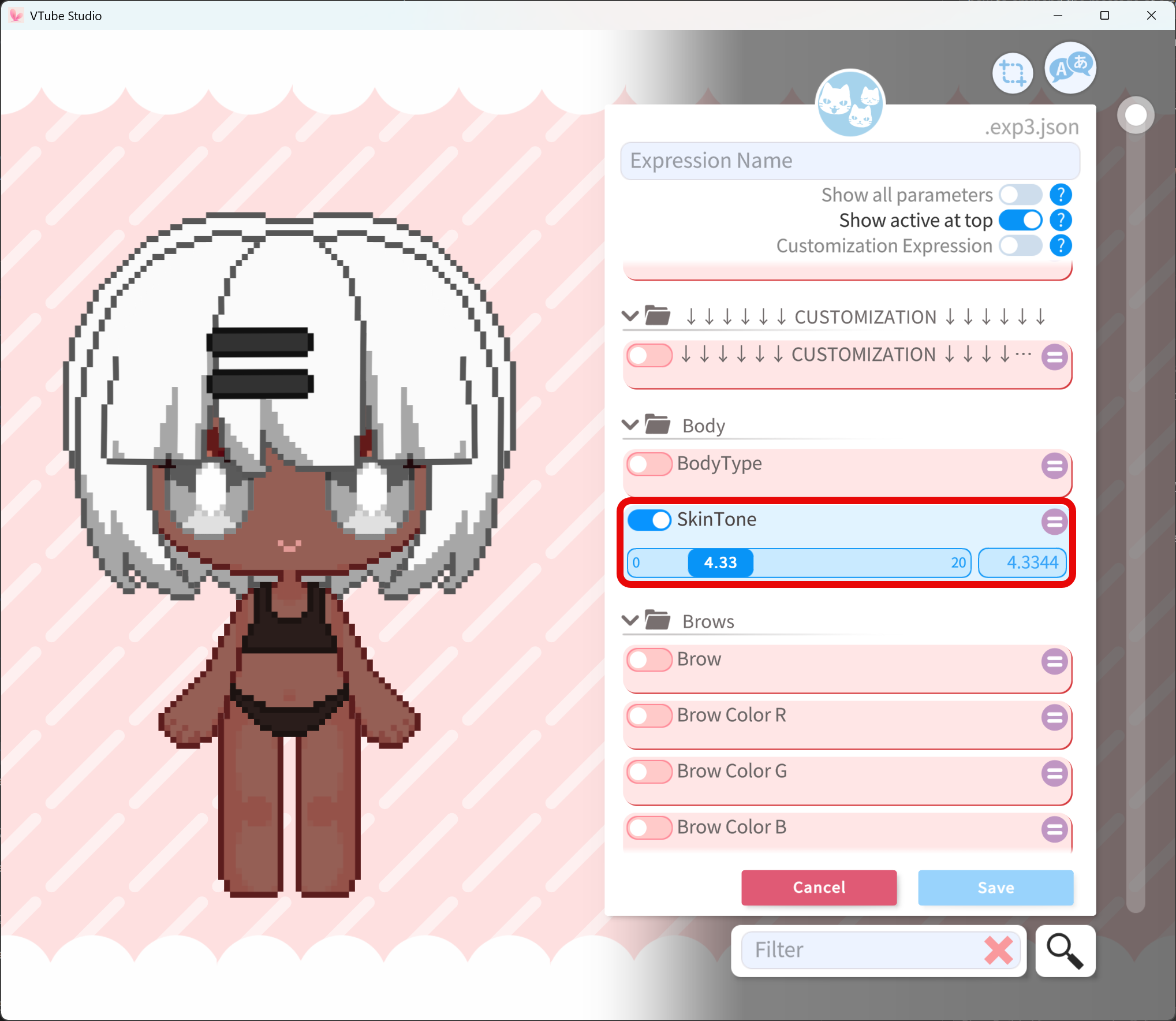
Single Color Slider
Single color sliders allow you to choose among predefined indexed colors.
RGB Sliders
RGB sliders allow you to adjust the color of the part by adjusting the red, green, and blue channels. The labels often end with Color R/G/B or just R/G/B. The range is typically 0–255 per channel (minimum to maximum intensity).
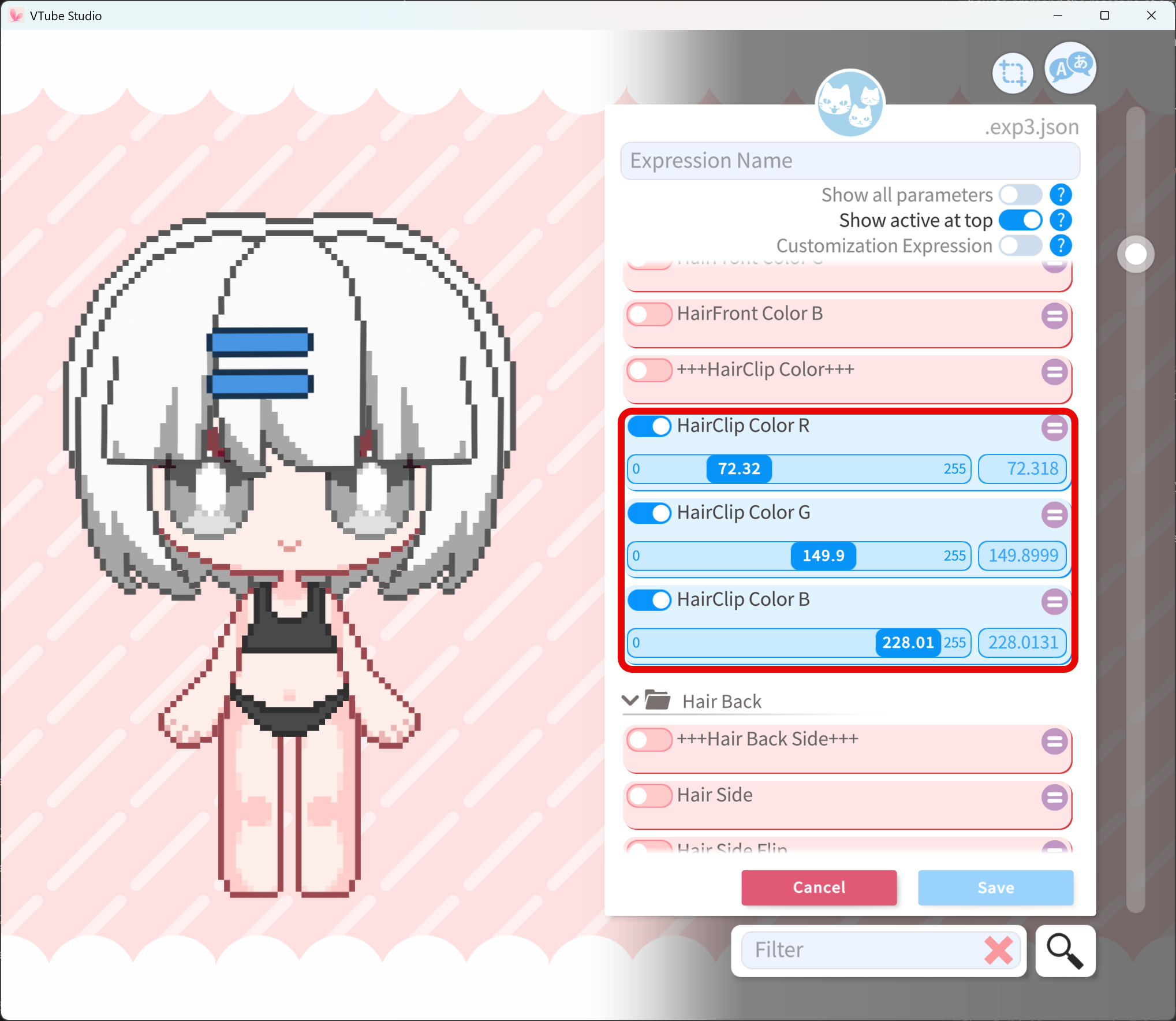
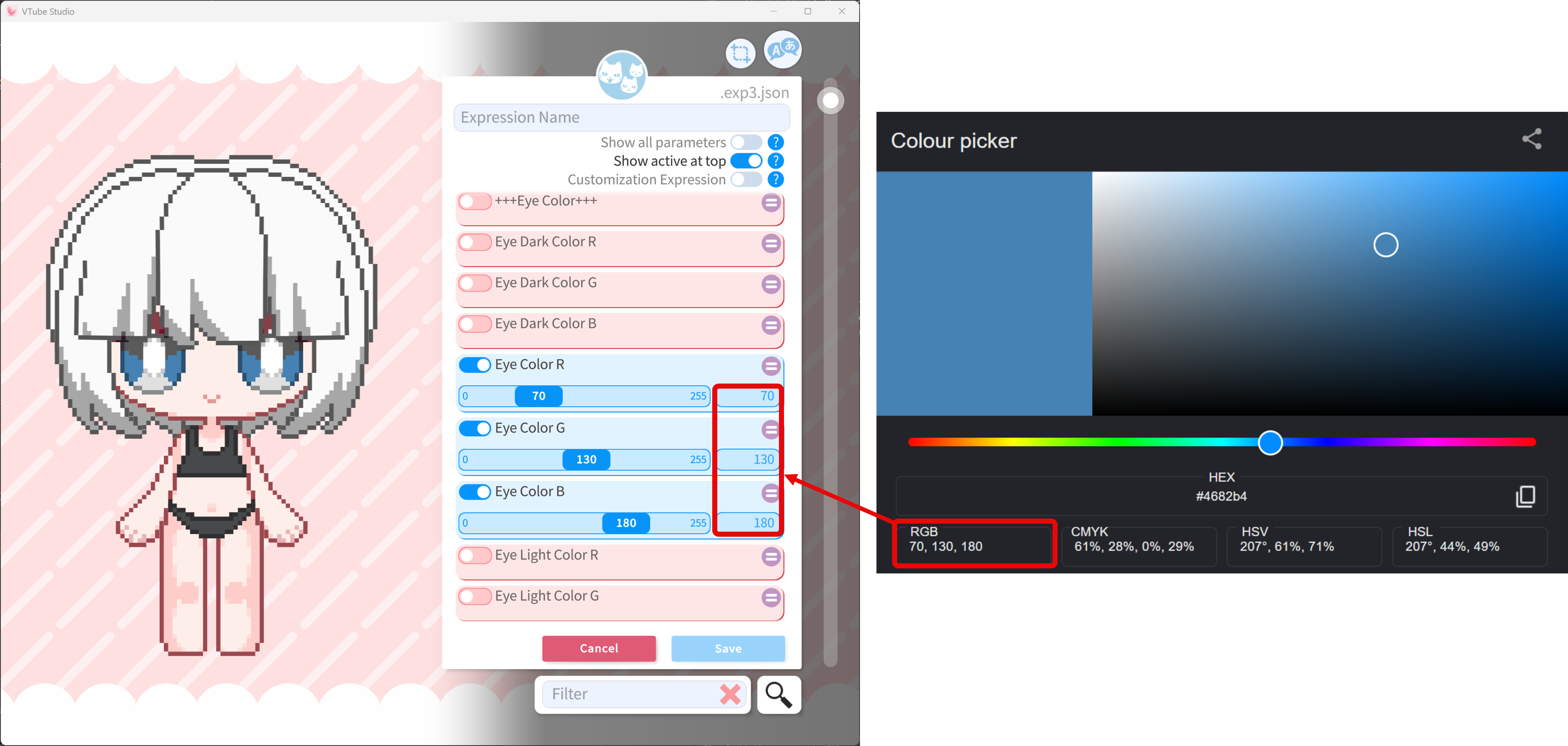
RGB is the usual additive color model for screens. Each channel adds red, green, or blue light to a black background. A 100% intensity for each channel will produce a white color. Hues such as yellow and purple come from mixing channels. For example, higher R and G with lower B will produce a yellow color.
To match an external design, pick the color in a color picker, read decimal RGB, and type or copy those values into VTS.
HSV Sliders
HSV sliders allow you to adjust the color of the part by adjusting the hue, saturation, and value. The labels often end with Color H/S/V or just H/S/V. The range is typically 0–360 for hue, 0–100 for saturation, and 0–100 for value.
Hidden Props
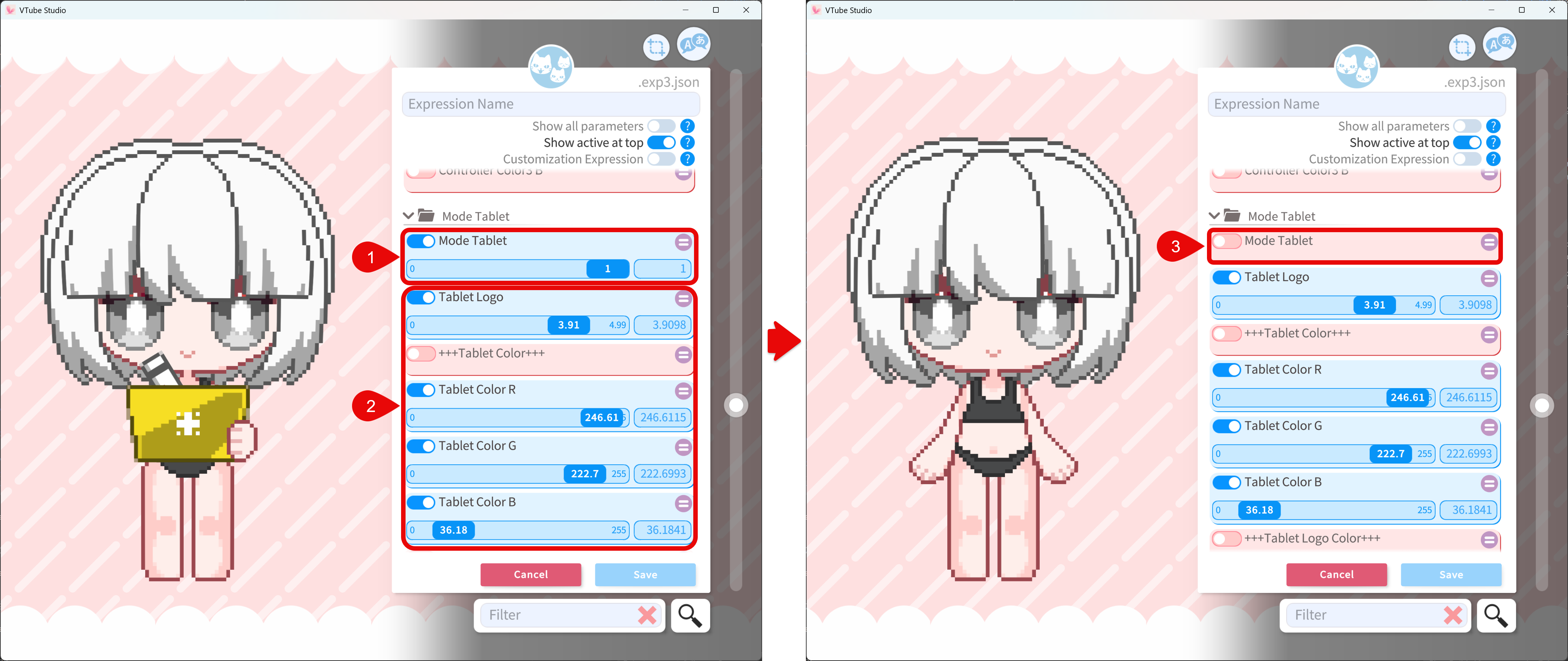
Some props (controller, tablet, handheld items, etc.) may be hidden by default. Turn the prop visibility parameter on so you can see slider changes on the model. When you are done editing, turn the prop visibility parameter off before saving the customization expression. If you leave the prop visibility parameter on inside the saved expression, it will conflict with the normal show/hide hotkey of that prop.
For example, to edit the tablet (this is just an example. Not every model has a tablet) you have to turn on the Mode Tablet parameter first before adjusting the color parameters of the tablet. Then turn off the Mode Tablet parameter before saving the expression. In normal use the tablet often stays hidden by default and is toggled with a separate expression. The customization expression should not force it permanently visible unless that is what you want.
Hotkey and Persistence
- Under Hotkey Settings & Expressions tab, scroll to the bottom of the hotkey list and add a hotkey with the + button.
- Set Hotkey Action to Set/Unset Expression (exp3) and choose the expression you just created.
- Assign a key combination you want for that look.
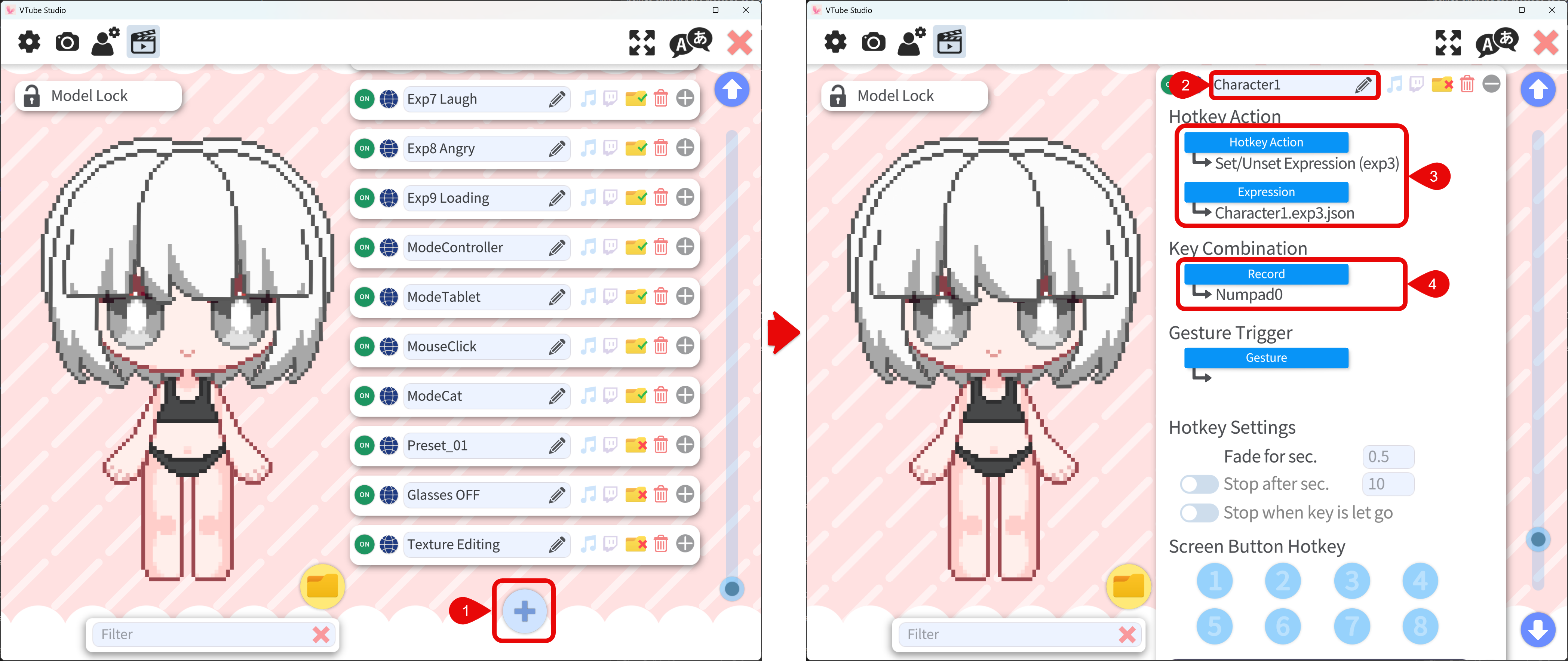
- Press the key combination you assigned to activate the expression.
- You should now be able to see the model's appearance change.
- It is recommended to disable the hotkey after activation to avoid accidental toggling the expression again.
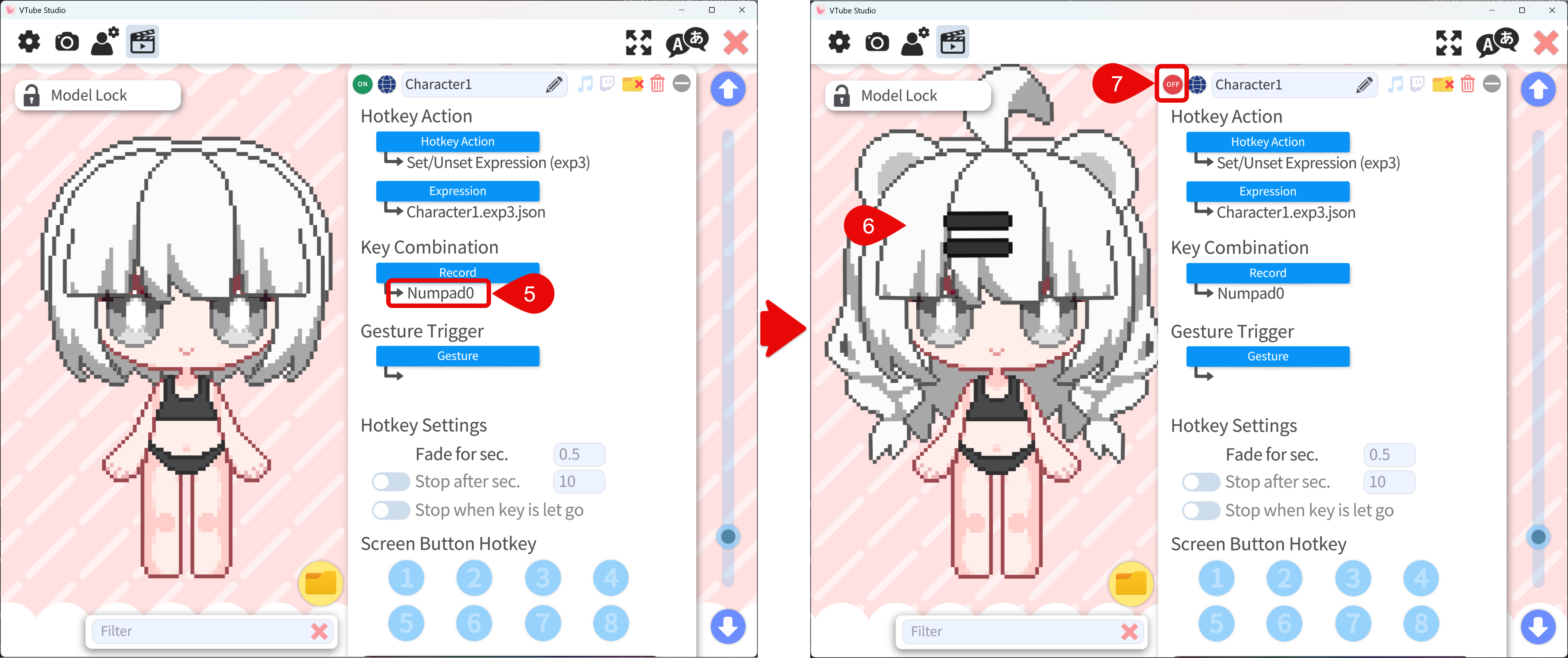
When the Save Active Expressions option is enabled, VTS will restore which expressions were active when you reload the model or restart the app, so you do not have to toggle your customization expression again every session. The Save Active Expressions is usually enabled by default. In case it is disabled, you can enable it following the Basic Setup instructions.
See Also
- Hotkey Settings (Toggles) — More detail on viewing and editing hotkeys, actions, and the hotkey list.
- Models — Product Content and customization parameters pages for each model line.