Hotkey Settings (Toggles)
For most models, toggle expressions and functions already have hotkeys configured. Default bindings are usually listed in the model’s Content section on this site. You can view or change them anytime in VTube Studio.
View Key Bindings
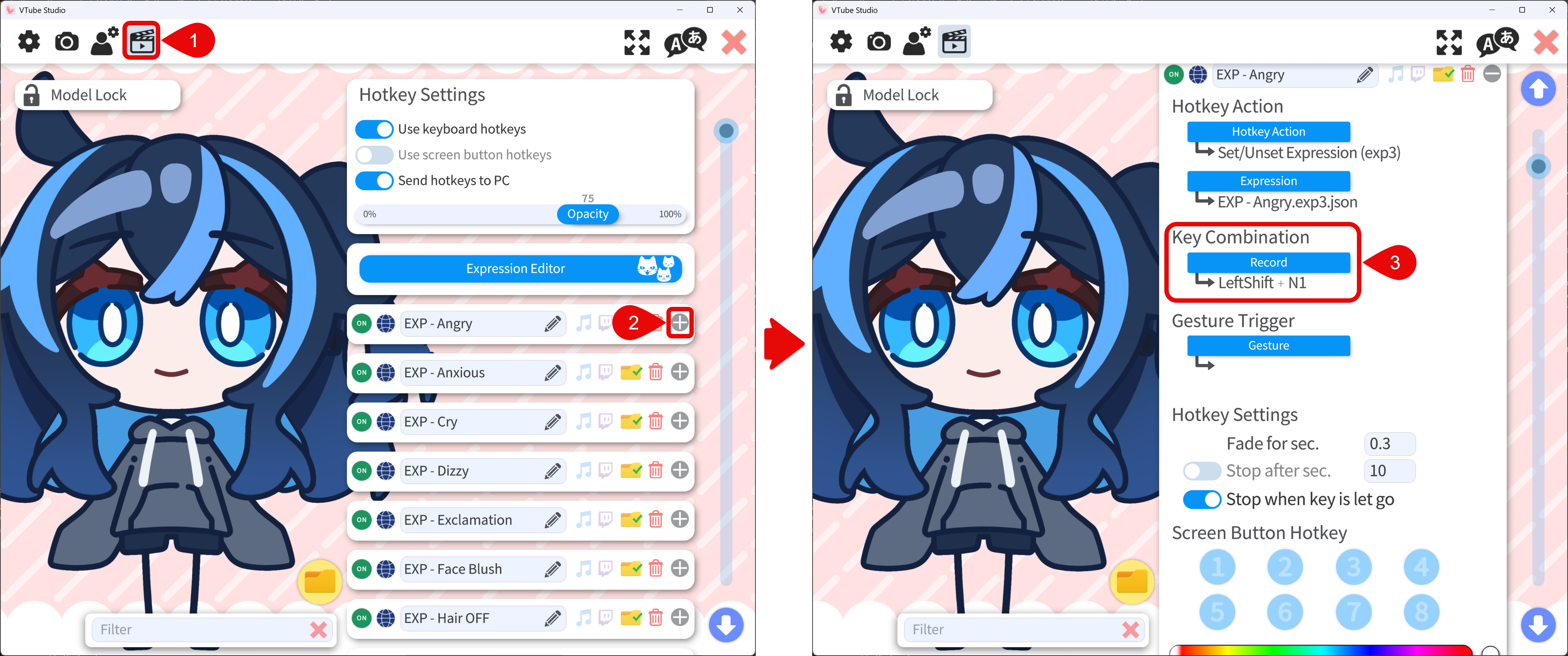
- In VTube Studio, open Settings, then open the Hotkey Settings & Expressions tab.
- In Key Bindings, use the + control to expand a row and see details.
- The current shortcut appears under Key Combination.
Change a Key Combination
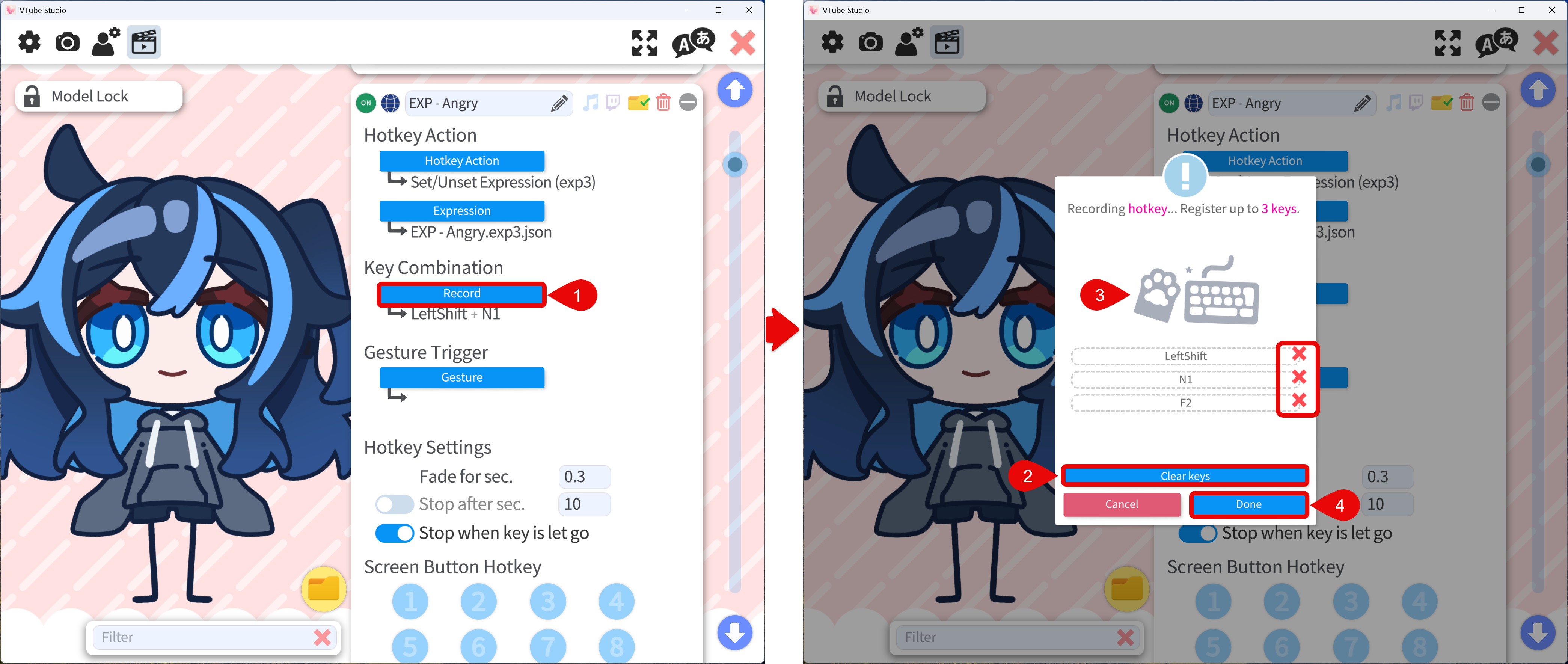
- Under Key Combination, choose Record.
- Optional: clear the existing binding with Clear or the × next to the recorded key.
- Press the new shortcut you want on your keyboard.
- Choose Done to save.
Hotkey Options
Defaults are normally fine unless you want different keys or behavior. You can adjust:
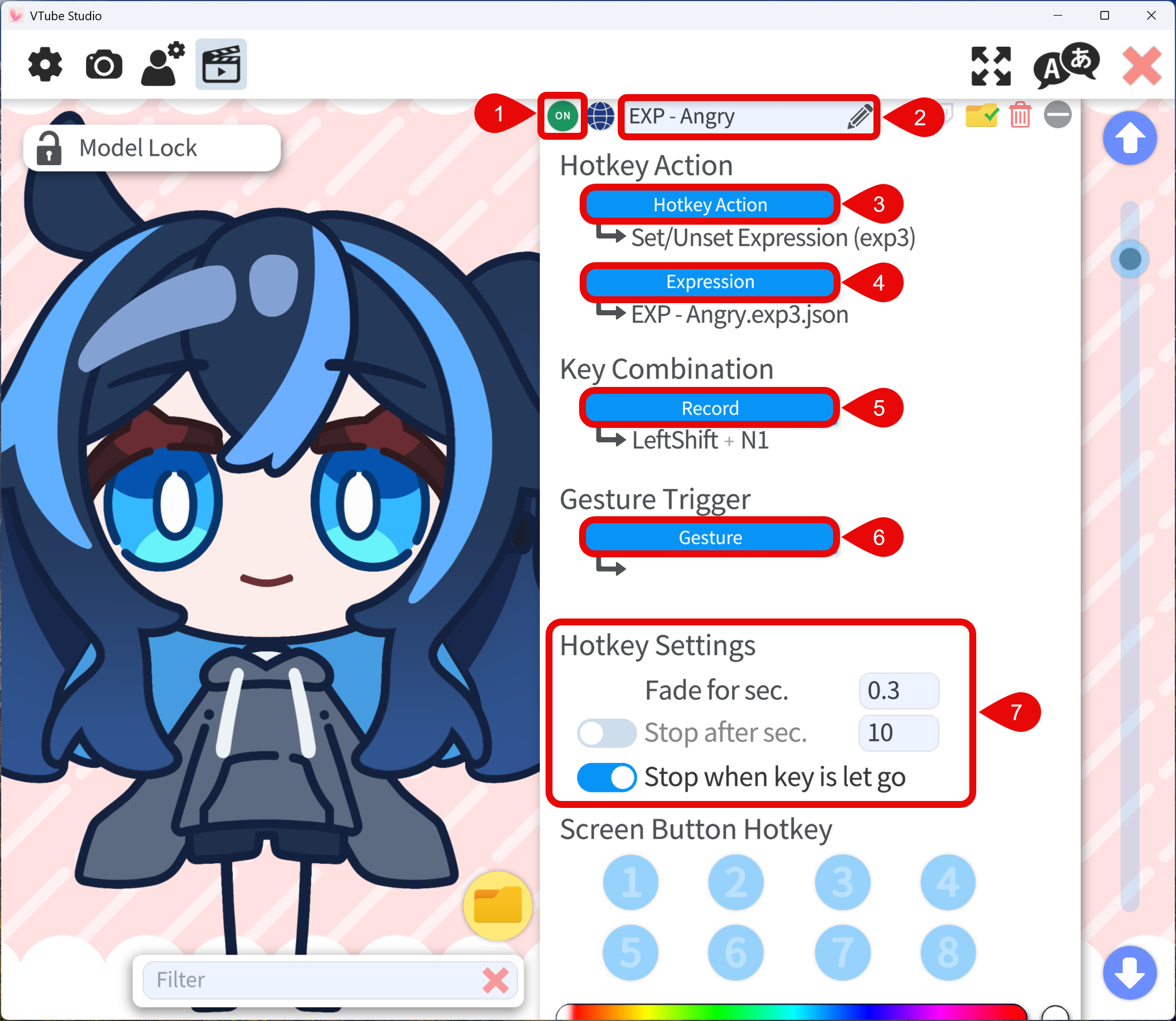
- ON / OFF: Disables the hotkey without deleting it. When off, pressing the key combination will not trigger the assigned action.
- Hotkey Name: Label shown in the list; rename if it helps you stay organized.
- Hotkey Action: What the shortcut does. Common choices:
- Set/Unset Expression (exp3): Toggles an expression.
- Play Animation (motion3): Plays an animation.
- Expression or Animation: After you pick an action, this button selects which expression or motion runs. The label matches the action type.
- Key Combination: Same as in Change a key combination above.
- Gesture Trigger: If hand tracking is enabled, you can assign a gesture instead of (or in addition to) a key. Open Gesture and pick from the list.
- Hotkey settings:
- Fade for sec.: Fade in/out duration when the expression or animation applies. Higher values mean a slower transition from the current state to the expression/animation state.
- Stop after sec.: Auto-off after this many seconds, then parameters return to default or tracking-controlled value. Often left off.
- Stop when key is let go: If enabled, the expression/animation will be turned off when you release the key.
- For held props (for example holding a mic), you may prefer this off so you do not have to keep the key pressed.
- For short reactions (surprise, crying, etc.), on can help avoid triggering another expression if you press the wrong key when turning off the expression.
Add a New Hotkey
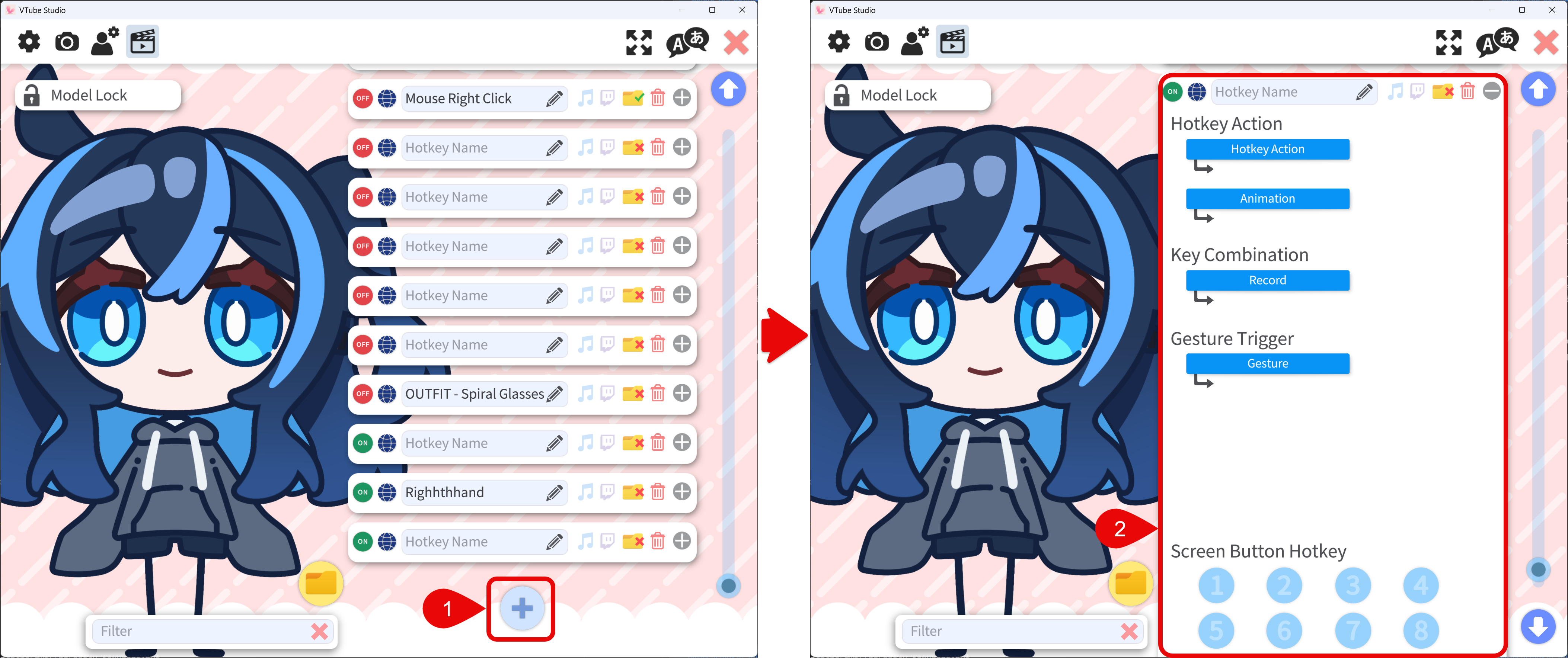
- At the bottom of the list, choose + to add a blank hotkey.
- Set Hotkey Action, pick the expression or animation, assign Key Combination , then adjust timing if needed.
Hotkey Groups
For hotkey grouping, see Parameter / Hotkey Group.