Mouse/Tablet Tracking
Mouse tracking is always active while VTube Studio (VTS) is running. If you use a drawing tablet, stylus movement is handled as mouse position input.
Cursor position on your primary display is mapped to the VTS parameters MousePositionX and MousePositionY. Both values are normalized to the range -1 to 1.
Mouse Input Configuration
You can adjust this mapping in General Settings & External Connections. If you only want to use part of the screen, set the X range and Y range to that area. In the example below, the X range is 0 to 3480 and the Y range is 0 to 2160, because the full area of a 3480 x 2160 monitor is used. Your values may be different depending on monitor resolution and selected input area.
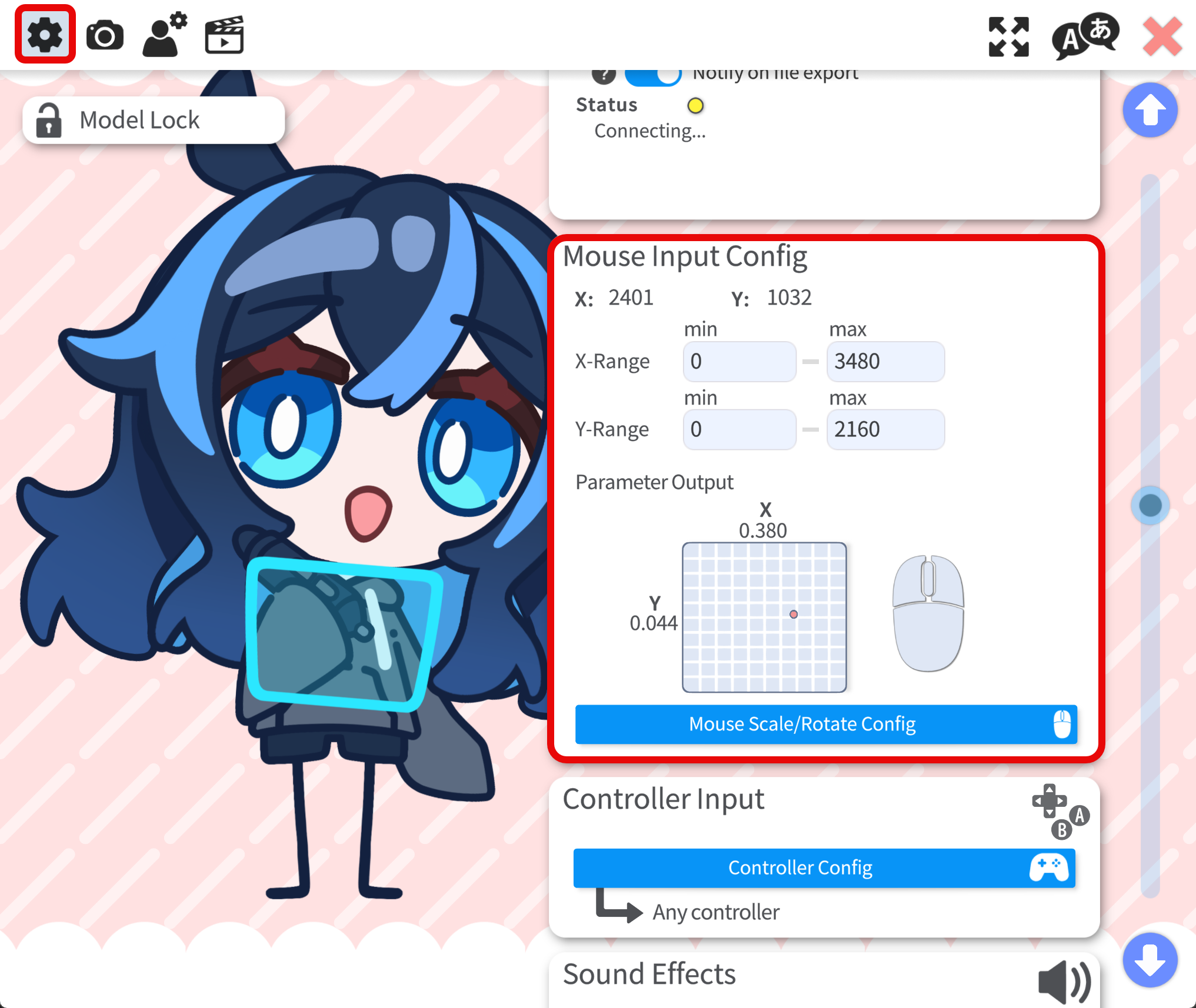
You can preview live output values in the same settings panel and confirm that MousePositionX/MousePositionY change when you move the mouse or stylus.
Mouse Tracking Support
In practice, you usually do not check whether a model "supports tablet tracking." Instead, check two things:
- Device input: Verify that your tablet/stylus input is recognized by VTS as mouse input (by checking whether mouse input values update in VTS settings).
- Model parameter setup: Verify that the model has parameters associated with
MousePositionXandMousePositionY(or other mappings you configure).
You can map MousePositionX/MousePositionY to control any Live2D model parameter you want, such as face angle or mouth movement. There is no differnece between face tracking parameters and mouse tracking parameters.